
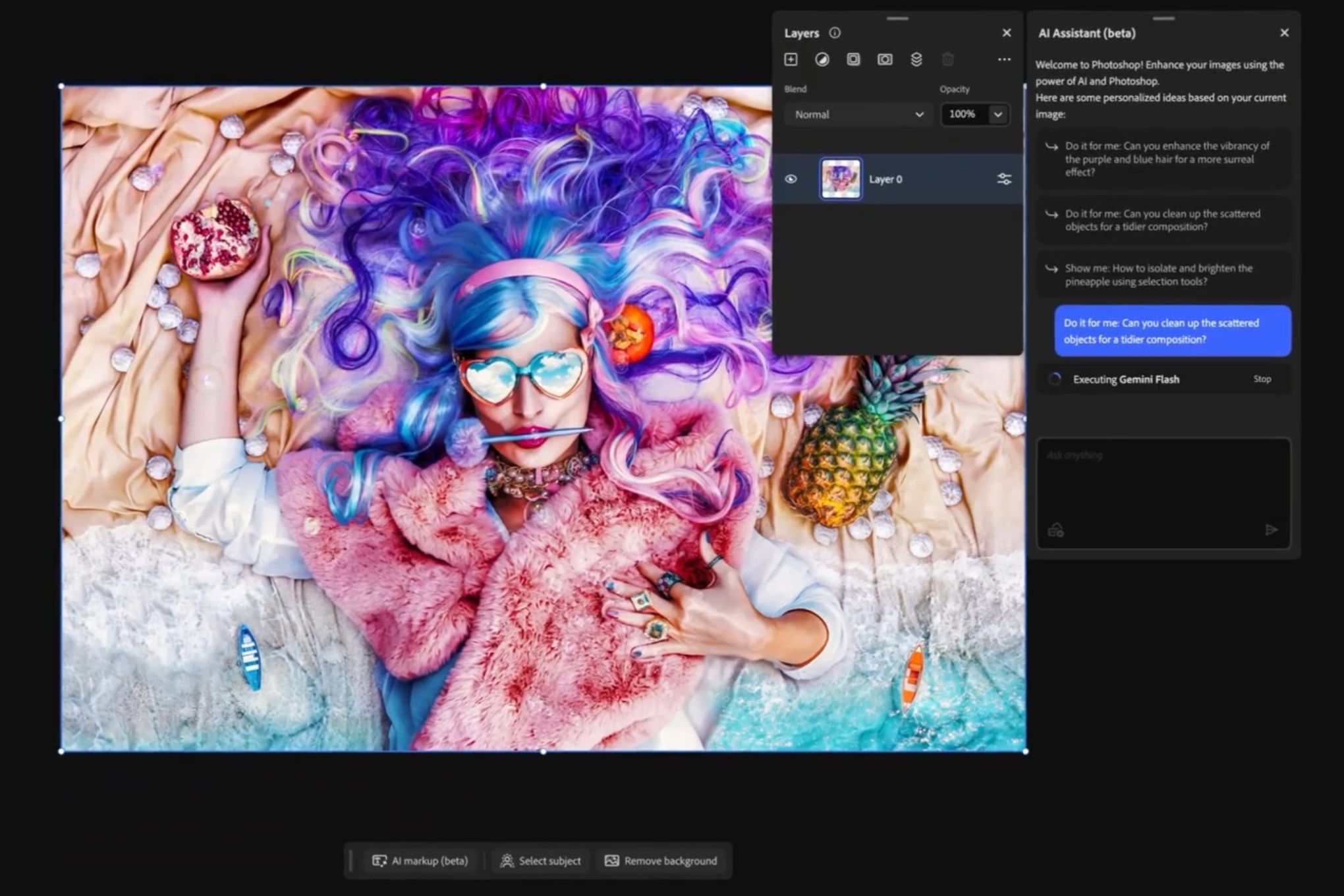
How to Edit Images in Photoshop Using the New AI Assistant (Public Beta)
TL;DR
- Open Photoshop for web or the mobile app, upload an image, and type or speak natural-language instructions like “remove the person in the background” or “make the lighting cinematic.”
- The AI Assistant can apply edits automatically or walk you through each step so you learn the process.
- The feature is now in public beta for Photoshop web and iPad/mobile—no desktop version yet.
Prerequisites
- An Adobe account with access to Photoshop for web (photoshop.adobe.com) or the Photoshop mobile/iPad app.
- A Creative Cloud subscription that includes Photoshop (most paid plans qualify; free trials also work).
- Stable internet connection (the AI Assistant runs in the cloud).
- Basic familiarity with uploading images (no advanced Photoshop knowledge required).
Step 1: Access Photoshop Web or Mobile
- Go to photoshop.adobe.com and sign in with your Adobe ID.
- Click Open or drag an image directly into the browser window.
- For mobile: Download or open the Photoshop app on your iPhone, iPad, or Android device and sign in.
The AI Assistant icon (a chat bubble) should now appear in the right-hand panel or top toolbar. If you don’t see it, ensure you’re using the latest version of the app or refresh the web page.
Step 2: Open the AI Assistant Chat
- In Photoshop web, look for the AI Assistant button on the right sidebar.
- In the mobile app, tap the microphone or chat icon at the bottom or side of the screen.
- The interface looks like a regular chatbot. You can type or, on supported devices, use voice input for hands-free editing on the go.
Pro tip: Start a new chat for each major edit session so the assistant keeps better context.
Step 3: Give Conversational Editing Commands
You can now describe changes in plain English. Here are practical examples that work right now in the public beta:
Basic object removal and cleanup
Remove the tourist in the red shirt on the left
Background changes
Replace the background with a tropical beach at sunset
Change the background to solid white and remove shadows
Lighting and color adjustments
Make the lighting more dramatic with golden hour warmth
Increase contrast and make the colors pop like a magazine cover
Turn this into a moody cinematic look
Selective edits
Give the New York City skyline a vintage film look but keep the yellow taxis in full color
Change only the model’s dress from red to emerald green
Layer-aware and repeatable tasks
Remove the background, create a clean mask on a new layer, and keep everything editable
Select the subject and add a soft drop shadow
After you send the prompt, the AI Assistant will either:
- Apply the edit automatically, or
- Offer to guide you step-by-step, showing which tools it plans to use (subject select, masks, adjustment layers, etc.).
Click Apply or Edit step by step depending on your preference.
Step 4: Review, Refine, and Undo
- Every change is non-destructive and appears on new layers or smart objects when possible.
- Use the chat to iterate: “Make the shadow softer” or “Undo the last change and try a cooler tone.”
- If you want to learn, choose the step-by-step mode. The assistant will explain each action (e.g., “I’m using Select Subject and creating a layer mask…”).
Voice editing on mobile: Tap the microphone and say your request out loud—ideal for editing while traveling or when your hands are occupied.
Tips and Best Practices
- Be specific but natural. Longer prompts often yield better results: “Remove the power lines from the sky, enhance the blue color of the ocean, and add a subtle vignette” works better than “make it pretty.”
- Work on high-resolution images for best AI performance.
- Use the assistant for repetitive tasks such as batch background removal or consistent color grading across multiple shots.
- Combine with manual edits. Let the AI handle the heavy lifting, then fine-tune with traditional tools.
- Keep the chat focused. Starting a fresh conversation after major structural changes helps the model maintain accuracy.
- On web, you can quickly jump to the full desktop Photoshop via the “Open in Photoshop” shortcut that sometimes appears.
Common Issues
### Why am I not seeing the AI Assistant button?
Make sure you’re logged into a paid Creative Cloud plan and using Photoshop web (not the regular Creative Cloud home). Refresh the page or update the mobile app. The feature is rolling out gradually—try again in a few hours if it’s still missing.
### The edit looks wrong or unrealistic.
Give more context in your prompt. Instead of “make it better,” try “apply a clean product-photo style with even studio lighting.” You can always say “undo” and rephrase.
### The assistant is slow or times out.
Complex edits on very large files can take 10–30 seconds. Use lower-resolution copies for testing, then apply the same prompt to the high-res version.
### Voice input isn’t working.
Voice is currently best on iPad and iPhone. Check microphone permissions in your device settings and ensure the app has the latest update.
### Edits are not staying editable.
Some generative changes create raster layers. Ask explicitly: “Apply this as an editable adjustment layer and mask.”
Next Steps
Once you’re comfortable with the AI Assistant in Photoshop web/mobile:
- Try the same conversational workflow in Adobe Express (already available).
- Test the new Copilot integration when Express and Acrobat become accessible inside Microsoft 365 Copilot for enterprise users.
- Explore the Photoshop desktop AI features expected in future updates (Adobe has teased agentic tools for the full desktop app).
- Combine the assistant with Generative Fill and other Firefly-powered tools for even more creative control.
The public beta is the fastest way to experience “agentic” photo editing—letting you edit images by describing what you want instead of hunting for the right tool.
Sources
- The Verge – You can now ask Photoshop’s AI assistant to edit images for you
- Adobe Help – AI Assistant (Beta) in Photoshop Elements 2026
- TechCrunch – Adobe launches AI assistants for Express and Photoshop
- ZDNET – Don't know Photoshop? Adobe's new AI tool can do image edits for you now - just ask
- Computerworld – Adobe AI assistants let you edit images in Photoshop and Express via prompts