
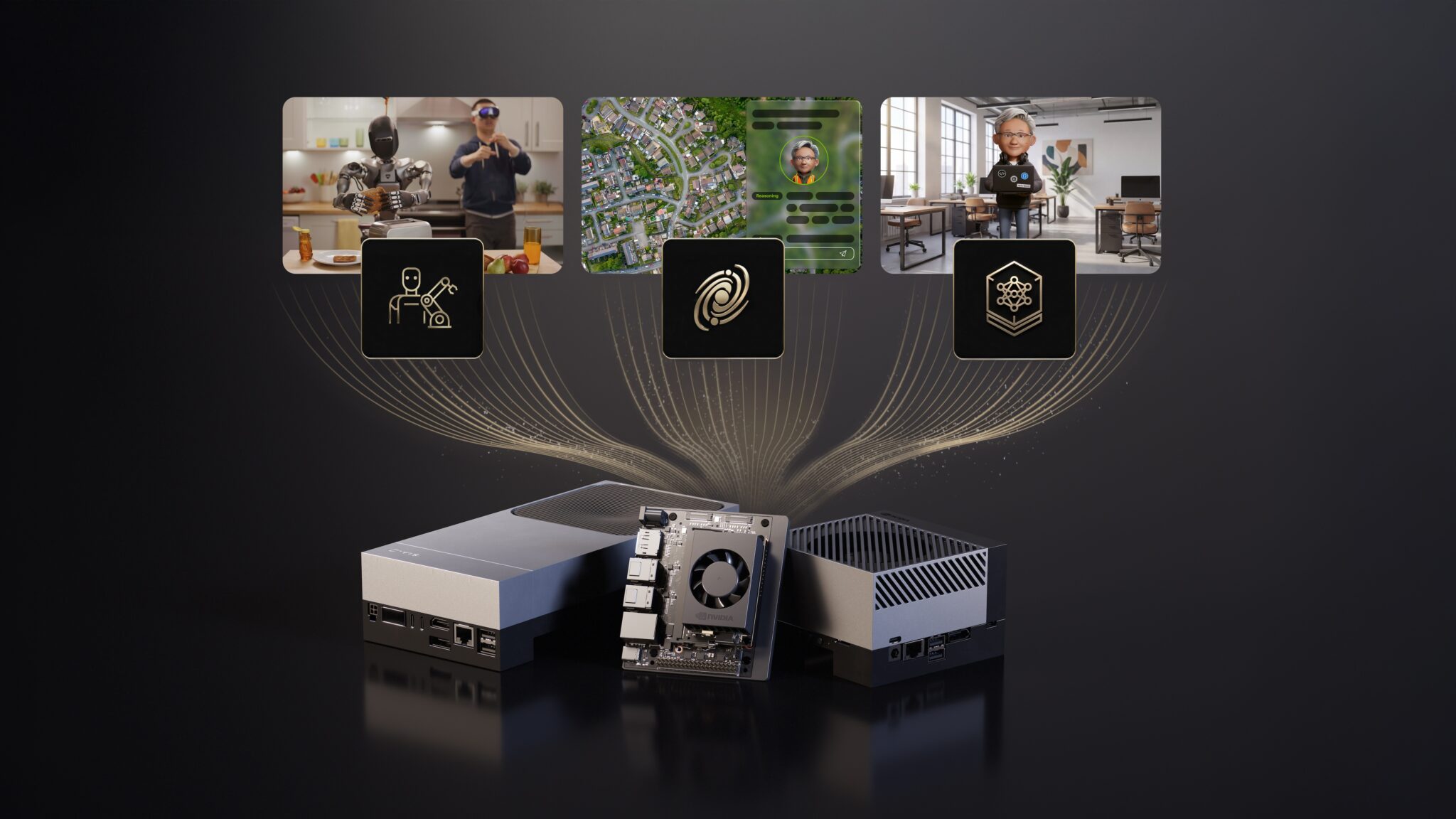
How to Run Private Generative AI Assistants and Robotics Models at the Edge with NVIDIA Jetson
TL;DR
- Install OpenClaw on any NVIDIA Jetson developer kit and run open-source LLMs (2B–30B) locally with vLLM for zero-latency, private voice or text assistants.
- Deploy speech models with NVIDIA Riva/Nemotron and connect them to real-world hardware like the Cat AI Assistant demo or personal robotics projects.
- Start today on Jetson Orin Nano 8GB or higher — no cloud, no API costs, full data privacy.
Prerequisites
- NVIDIA Jetson developer kit (Orin Nano 8GB, Orin NX, AGX Orin, or Jetson Thor) with JetPack 6.0 or later installed.
- Ubuntu 22.04 LTS (pre-installed on most Jetson kits).
- At least 8 GB RAM (16 GB+ recommended for 7B–13B models).
- Internet connection for initial setup only.
- Basic familiarity with Linux command line and Docker (optional but helpful).
Step 1: Set Up Your Jetson Developer Kit
Flash the latest JetPack SDK if you haven’t already.
sudo apt update && sudo apt upgrade -y

# Install required packages
sudo apt install -y python3-pip python3-venv docker.io nvidia-container-toolkit
sudo systemctl enable --now docker
Verify GPU acceleration:
jetson_clocks
nvidia-smi
You should see your Jetson GPU listed. For Jetson Thor or AGX Orin, enable maximum power mode:
sudo nvpmodel -m 0
Step 2: Install OpenClaw for Local Open Model Inference
OpenClaw is the open-source framework highlighted in the Caterpillar and NVIDIA demos for running private AI assistants on Jetson.
git clone https://github.com/NVIDIA-AI-Assistant/OpenClaw.git
cd OpenClaw
./setup.sh
The setup script installs vLLM, Hugging Face Transformers, and optimized kernels for Jetson.
Step 3: Run Qwen3 4B or Other Open Models with vLLM
The Cat AI Assistant demo uses Qwen3 4B served locally via vLLM for low-latency responses.
Create a simple launch script:
# launch_qwen.sh
python3 -m vllm.entrypoints.openai.api_server \
  --model Qwen/Qwen3-4B \
  --tensor-parallel-size 1 \
  --dtype float16 \
  --max-model-len 8192 \
  --gpu-memory-utilization 0.85 \
  --port 8000
Make executable and run:
chmod +x launch_qwen.sh
./launch_qwen.sh
Test it immediately with curl:
curl http://localhost:8000/v1/completions \
  -H "Content-Type: application/json" \
  -d '{
    "model": "Qwen/Qwen3-4B",
    "prompt": "Explain how to dig a utility trench safely",
    "max_tokens": 256,
    "temperature": 0.7
  }'
For larger models (7B–13B), use Jetson AGX Orin or Thor and increase --tensor-parallel-size if needed.
Step 4: Add Voice Interaction with NVIDIA Nemotron and Riva
The Caterpillar demo combines speech with Nemotron models for natural voice interaction.
Install Riva Quick Start (speech-to-text and text-to-speech):
wget https://data.nvidia.com/riva/riva_quickstart_v2.0.0.zip
unzip riva_quickstart_v2.0.0.zip
cd riva_quickstart_v2.0.0
./riva_init.sh
./riva_start.sh
Create a voice-enabled assistant wrapper:
# voice_assistant.py
import requests
import sounddevice as sd
import numpy as np
from riva.client import SpeechSynthesisClient, AudioEncoding

# Connect to local Riva and vLLM
def speak(text):
    client = SpeechSynthesisClient("localhost:50051")
    response = client.synthesize(
        text=text,
        voice_name="Nemotron",
        language_code="en-US",
        encoding=AudioEncoding.LINEAR_PCM,
        sample_rate_hz=22050
    )
    audio = np.frombuffer(response.audio, dtype=np.int16)
    sd.play(audio, 22050)
    sd.wait()

# Main loop
while True:
    # Add your wake-word or button trigger here
    user_input = input("You: ")
    if user_input.lower() == "exit":
        break

    resp = requests.post(
        "http://localhost:8000/v1/completions",
        json={"model": "Qwen/Qwen3-4B", "prompt": user_input, "max_tokens": 200}
    )
    answer = resp.json()["choices"][0]["text"]
    print("Assistant:", answer)
    speak(answer)
Run with python3 voice_assistant.py. This gives you a private, always-on voice assistant like the Cat AI Assistant shown at CES.
Step 5: Run Robotics Models (GR00T N1.5 / N1.6) on Jetson
For robotics projects like the FR3 Duo or UIUC matcha-making robot:
# Clone GR00T inference examples
git clone https://github.com/NVIDIA-Omniverse/IsaacLab.git
cd IsaacLab

# Install dependencies (follow official Isaac Lab setup)
./isaaclab.sh -i

# Run GR00T N1.5 policy (example)
python source/standalone/workflows/gr00t/inference.py \
  --model_path nvidia/gr00t-n1.5 \
  --device cuda
The policy executes locally at ~50 Hz on Jetson Thor or AGX Orin, exactly as demonstrated in the Franka Robotics and NYU YOR robot demos.
Tips and Best Practices
- Model selection: Start with Qwen3 4B or Phi-3.5-mini on Orin Nano 8GB. Move to 7B–13B models on Thor for better reasoning.
- Power management: Use
jetson_clocksandnvpmodel -m 0during inference for maximum performance. - Privacy first: All processing stays on-device — ideal for industrial (Caterpillar), home, or sensitive data use cases.
- Quantization: Use 4-bit or 8-bit AWQ/GPTQ versions of models to fit larger LLMs in memory.
- Always-on assistant: Run the vLLM server with systemd or Docker for 24/7 operation, as shown by Collabnix community member Ajeet Singh Raina.
- Monitor memory: Use
watch -n 1 nvidia-smito avoid OOM errors with larger models.
Common Issues
Why am I getting "CUDA out of memory" error?
Reduce --max-model-len, use a smaller model (4B instead of 7B), or enable quantization. On Orin Nano, stay under 4–5B parameter models.
Why is latency higher than the CES demo?
Make sure jetson_clocks is running and you’re using the correct power mode. Riva and vLLM should deliver sub-300ms responses on Jetson Thor.
"ModuleNotFoundError: No module named 'vllm'"
Re-run the OpenClaw setup script or install vLLM manually with Jetson-compatible wheels from the NVIDIA NGC catalog.
Voice sounds robotic or delayed?
Use Nemotron speech models through Riva and reduce sample rate or buffer size in the audio pipeline.
Next Steps
- Experiment with multimodal models (VLMs) using the official NVIDIA Jetson Edge AI tutorials.
- Integrate your assistant with home automation (Home Assistant) or industrial CAN bus for real equipment control.
- Join the Collabnix or Hugging Face communities to share your private AI assistant setups.
- Explore full physical AI stacks with Isaac Lab and GR00T for advanced robotics projects.
- Try running the SONIC humanoid controller or YOR pick-and-place policies on your own Jetson.
You now have everything needed to replicate the Cat AI Assistant and modern edge robotics demos on your own hardware — completely offline and private.
Sources
- As Open Models Spark AI Boom, NVIDIA Jetson Brings It to Life at the Edge
- Steel, Sensors and Silicon: How Caterpillar Is Bringing Edge AI to the Jobsite
- Getting Started with Edge AI on NVIDIA Jetson: LLMs, VLMs, and Foundation Models for Robotics
- NVIDIA Releases New Physical AI Models as Global Partners Unveil Next-Generation Robots