
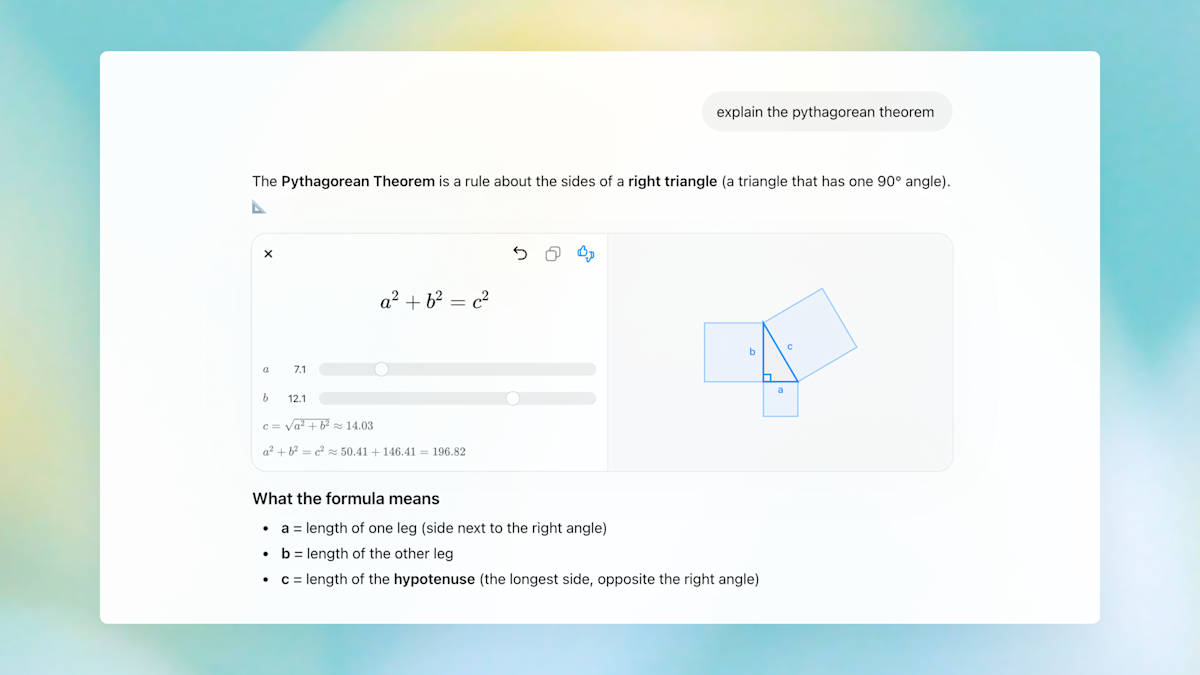
How to Use ChatGPT's New Interactive Visuals for Math and Science
TL;DR
- Ask ChatGPT about supported math or science concepts (like the Pythagorean theorem, Ohm’s law, or Coulomb’s law) and it will automatically generate an interactive visual you can tweak in real time.
- Change variables or edit the equation directly in the visual to instantly see how the solution updates—no coding required.
- The feature is available right now to every ChatGPT user, free or paid, with over 70 concepts already supported.
Prerequisites
- A ChatGPT account (free tier works)
- Access to chatgpt.com or the ChatGPT mobile app
- Basic familiarity with typing clear prompts in natural language
- No additional software, plugins, or subscription required
Step 1: Log in and Start a New Chat
- Go to chatgpt.com and sign in (or create a free account).
- Click New chat in the left sidebar.
- (Optional but recommended) Switch to GPT-4o if the model selector is visible—interactive visuals work best with it.
Step 2: Ask for a Supported Concept
The feature activates automatically when you mention one of the 70+ supported topics. Try these proven prompts:
Math examples
- “Explain the Pythagorean theorem with an interactive visual”
- “Show me how the quadratic formula works interactively”
- “Visualize the unit circle and let me change the angle”
Science examples
- “Explain Ohm’s law with an interactive diagram”
- “Show Coulomb’s law interactively”
- “Demonstrate the lens equation with a visual I can adjust”
- “Help me understand projectile motion with sliders”
Pro tip: Be specific about what you want to explore.
Example:
“Show the relationship between force, mass, and acceleration using Newton’s second law with interactive sliders.”
As soon as ChatGPT detects a supported concept, it replies with explanatory text plus an interactive panel.
Step 3: Interact with the Visual
Once the visual appears:
- Sliders — Drag sliders for variables (e.g., voltage, resistance, angle, mass).
- Direct equation editing — Click the equation and type new values or formulas.
- Real-time updates — The graph, diagram, or solution updates instantly.
- Reset button — Most visuals include a “Reset” option to return to default values.
Practical classroom-style usage
- Learning Pythagorean theorem: Change side lengths and watch the right triangle resize while the equation recalculates.
- Ohm’s law: Increase voltage and see current rise on the graph.
- Lens equation: Adjust object distance and focal length to see where the image forms.
Step 4: Combine with Study Mode for Deeper Learning
OpenAI released Study Mode last summer. Use both features together:
- First ask for the interactive visual.
- Then say: “Switch to Study Mode and guide me through solving this myself.”
ChatGPT will now ask you questions instead of giving the answer, while still letting you play with the visual.
Tips and Best Practices
- Start simple — Begin with one variable at a time so you can see its isolated effect.
- Use precise language — Instead of “show me physics,” say “show me the lens equation interactively.”
- Ask for related concepts — After exploring Ohm’s law, follow up with “Now show Kirchhoff’s voltage law with an interactive circuit.”
- Take screenshots — Capture interesting states of the visual for notes or reports.
- Mobile tip — The feature also works on the ChatGPT iOS/Android app; touch sliders work especially well on tablets.
- Chain prompts — After playing with the visual, ask “Explain why the curve changes like that” to get a textual explanation of what you just observed.
Example full conversation flow
User: Explain Coulomb’s law with an interactive visual
ChatGPT: [text explanation + interactive charges and distance sliders]
User: What happens if I double the charge on both particles?
User: Now explain the inverse square relationship in words.
Common Issues
### Why isn’t an interactive visual appearing?
Make sure you’re asking about a supported concept. Try one of the examples above. If it still doesn’t appear, start a completely new chat—sometimes context from previous messages interferes.
### The sliders are missing or the visual is static
This occasionally happens on the very first response. Reply with “Make this interactive” or rephrase the original prompt. The feature is still rolling out; refreshing the page usually fixes it.
### I’m getting a text-only answer even for Pythagorean theorem
Add the word “interactive” explicitly: “Show an interactive visual of the Pythagorean theorem.”
### The visual loads slowly
Interactive diagrams are computationally heavier than plain text. Give it 5–10 seconds. On mobile, make sure you have a stable connection.
### I want visuals for a topic that isn’t supported yet
Reply with “Are there any similar supported concepts?” ChatGPT will suggest currently available topics.
Next Steps
After mastering the current 70+ concepts:
- Explore how different variables affect outcomes and document your findings.
- Combine visuals with ChatGPT’s new o1 reasoning model (now out of preview) for step-by-step derivations.
- Use the visuals to create your own mini-lessons or study guides.
- Watch for OpenAI’s announced expansions—more subjects and interactive learning tools are coming.
- Try uploading a photo of a handwritten equation (with o1) and ask it to turn the photo into an interactive visual.
The new interactive visuals turn ChatGPT from a passive explainer into an active learning environment you can experiment with instantly.
Sources
- Engadget — ChatGPT will now generate interactive visuals to help you with math and science concepts
- OpenAI official announcements referenced in the coverage
This guide is based entirely on the OpenAI feature rollout announced today and focuses on what users can do immediately.