
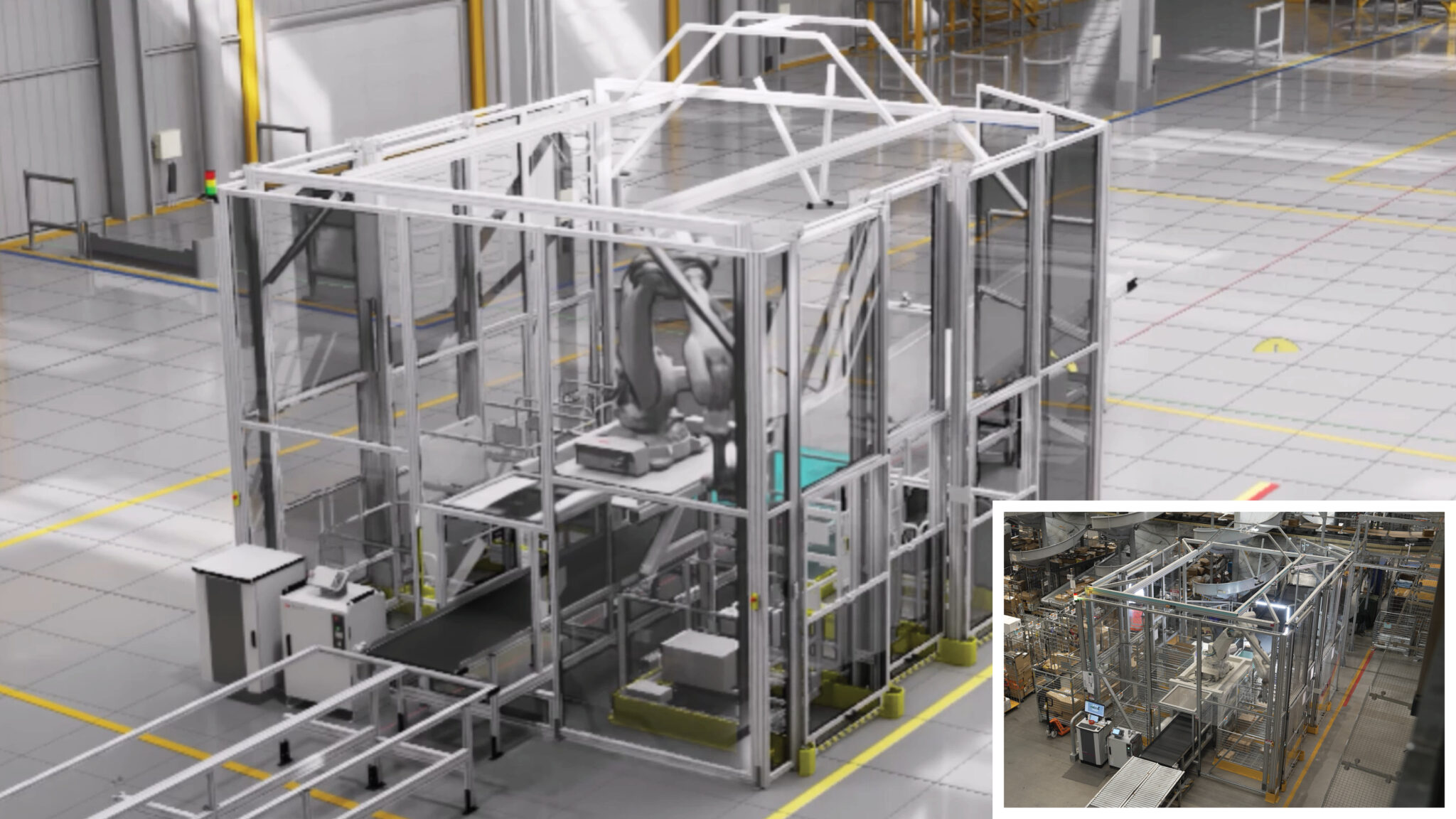
How to Prepare for ABB RobotStudio HyperReality with NVIDIA Omniverse (Practical Guide for Robotics Engineers)
TL;DR
- Start using NVIDIA Omniverse today to generate high-fidelity synthetic data and physically accurate simulations that will directly import into the upcoming RobotStudio HyperReality.
- Export your current RobotStudio stations as USD files and test them in Omniverse to achieve up to 99% sim-to-real correlation when HyperReality launches in H2 2026.
- Begin building AI vision models with Omniverse-generated synthetic images so your ABB robots can be trained before physical deployment, potentially cutting engineering time and deployment costs by up to 40%.
Prerequisites
Before you start, make sure you have the following:
- An active NVIDIA Omniverse account (free tier or Enterprise license)
- ABB RobotStudio 2024 or later installed (download from the ABB Robotics website)
- Basic familiarity with USD (Universal Scene Description) file format
- A GPU with at least 8 GB VRAM (RTX 3060 or better recommended for smooth simulation)
- Access to your target robot models (ABB GoFa, IRB series, etc.)
- Optional but recommended: NVIDIA Jetson developer kit if you plan to explore edge AI inference later
Note: RobotStudio HyperReality itself will not be available until the second half of 2026. This guide focuses on what you can implement right now to be ready on day one.
Step 1: Set Up NVIDIA Omniverse for Industrial Simulation
- Go to the NVIDIA Omniverse Launcher and install the latest version.
- Install the Omniverse Kit and the Isaac Sim app (version 4.0 or newer).
- Enable the Omniverse Cloud or run locally on your workstation.
- Open Omniverse and create a new project folder named
ABB_HyperReality_Prep.
omniverse --version
Visual: Screenshot of the Omniverse Launcher showing Isaac Sim and Code extensions installed.
This step gives you access to physically accurate physics, lighting, and material simulation that ABB is integrating directly into RobotStudio HyperReality.
Step 2: Export Your RobotStudio Cell as USD
ABB’s new workflow centers on exporting fully parameterized robot stations as USD files.
- Open your existing project in ABB RobotStudio.
- Ensure your station includes:
- ABB robot model with correct kinematics
- End-of-arm tooling
- Workpieces and fixtures
- Sensors and cameras
- Lighting setup
- Use RobotStudio’s built-in USD exporter (available in 2024.2+ versions) or the new Omniverse connector preview if ABB has released it to early access partners.
- Export the entire station as a single
.usdor.usdafile.
# Example Python snippet inside RobotStudio RAPID or Python scripting
from abb_robotstudio import Station
station = Station.current()
station.export_usd("C:/Omniverse_Projects/ABB_HyperReality_Prep/cell.usd",
                   include_physics=True,
                   include_sensors=True)
Tip: Name your file descriptively (e.g., foxconn_assembly_cell_v2.usd) to match the real-world pilot use cases.
Step 3: Import and Validate in Omniverse
- Launch Omniverse and open your project.
- Drag the exported
.usdfile into the stage. - Add the ABB Virtual Controller extension (available through Omniverse Exchange or direct from ABB’s early access program).
- Run the same firmware that will be used on the physical robot inside the simulation.
- Validate physics accuracy:
- Test grasping forces
- Check collision detection
- Measure positioning accuracy (target < 0.5 mm with Absolute Accuracy calibration)
Visual: Screenshot of a RobotStudio-exported cell running inside Omniverse with physics debugger enabled.
Step 4: Generate Synthetic Training Data for Vision AI
This is one of the most immediate high-value actions you can take today.
- In Omniverse Isaac Sim, add your camera sensors to the imported station.
- Use the Synthetic Data Generation (SDG) pipeline:
- Vary lighting conditions (factory daylight, LED overhead, shadows)
- Randomize part textures and slight deformations
- Generate 10,000+ labeled images automatically
- Export the dataset in COCO or KITTI format.
# Example SDG script snippet using Omniverse Replicator
import omni.replicator.core as rep

camera = rep.create.camera()
render_product = rep.create.render_product(camera, (1920, 1080))

with rep.trigger.on_time(interval=5):
    rep.randomizer.lights()
    rep.randomizer.materials()
    rep.randomizer.rotation()

writer = rep.WriterRegistry.get("BasicWriter")
writer.initialize(output_dir="C:/synthetic_data/abb_foxconn")
writer.attach(render_product)
These synthetic images will feed directly into your AI training pipelines and achieve the high accuracy Foxconn is already piloting.
Step 5: Test Sim-to-Real Transfer Strategies
- Calibrate your physical ABB robot using Absolute Accuracy technology (reduces error from 8–15 mm to ~0.5 mm).
- Run identical pick-and-place or assembly tasks in simulation and on the real robot.
- Measure correlation — the goal is 99% behavior match.
- Log discrepancies and adjust material properties or friction coefficients in Omniverse to close the gap.
Tips and Best Practices
- Start small: Begin with a single robot cell rather than an entire production line.
- Use real factory data: Capture actual lighting measurements and material samples from your shop floor to recreate them accurately in Omniverse.
- Version control your USD files using Omniverse Nucleus server.
- Collaborate: Share Omniverse scenes with your team using Omniverse Cloud for real-time multi-user editing.
- Focus on high-variation products first — consumer electronics and small-batch manufacturing benefit most, as seen with Foxconn and Workr pilots.
- Keep your RobotStudio and Omniverse versions aligned. ABB will release regular connectors leading up to the 2026 HyperReality launch.
Common Issues
### Why is my USD export missing physics properties?
Make sure you have RobotStudio 2024.2 or newer and explicitly enable the physics export option in the USD export dialog.
### Why does my synthetic data look unrealistic?
Check your material definitions. Use Omniverse’s Material Definition Language (MDL) to match real-world surface roughness, reflectivity, and subsurface scattering.
### My simulation runs too slowly. What should I do?
Lower the simulation fidelity for initial training, use Omniverse’s RTX ray-tracing selectively, or upgrade to an RTX 4080/5090 workstation.
### How do I get early access to RobotStudio HyperReality?
Contact your ABB Robotics account manager. Foxconn and Workr are already in pilot programs — existing large customers have the best chance of joining early trials.
Next Steps
After completing this preparation workflow:
- Explore integration of NVIDIA Jetson Orin into ABB’s Omnicore controller for real-time edge AI inference.
- Attend NVIDIA GTC 2026 sessions on robotics (especially Jensen Huang’s keynote on March 16).
- Test WorkrCore-style physical AI platforms with your ABB robots using Omniverse-trained models.
- Scale from one cell to a full digital twin of your production line.
By implementing these steps now, you will be positioned to immediately adopt RobotStudio HyperReality when it becomes available in the second half of 2026, potentially reducing your deployment costs by up to 40% and accelerating time-to-market by 50%.